 LineSheetFlow
A PRACTICAL WHOLESALE GUIDE
From product CSV to a line sheet
Organize variants, preserve leading-zero SKUs and match photos. Start with a downloadable product CSV example.
Your product spreadsheet can be the starting point for a wholesale catalog. The most useful preparation is a consistent SKU for each item and a clearly labeled wholesale price. LineSheetFlow imports CSV files; export an Excel or Google Sheets product table as CSV before uploading it.
Download the sample product CSV. It includes apparel variants, jewelry, soap, homewares and fabric sold by length. The products and prices are examples for practicing, not pricing recommendations.
1. Use one row per sellable variant
A navy T-shirt in medium and the same T-shirt in large need different SKUs, such as TEE-NV-M and TEE-NV-L. Keep the size and color in the specifications or custom attributes. LineSheetFlow displays variants as separate products; it does not group them into a size matrix.
Format the SKU column as text before entering identifiers such as 00127. If a spreadsheet has already removed the leading zeros, exporting to CSV will not restore them. Avoid duplicate SKUs and keep each identifier unchanged between imports.
2. Label your columns
| Column | Example | How it is used |
|---|---|---|
| SKU | SOAP-UN-100 | Required identifier; used for matching photos and future updates |
| Name | Unscented soap | Product name shown to the buyer |
| Wholesale | 4.50 | Price per selling unit, not per case |
| Retail | 9.00 | Optional suggested retail price |
| MOQ / Case pack / Unit | 24 / 12 / bar | Minimum 24 bars, 12 bars per case |
| Specs / Availability | 100 g / Ships in 10 days | Size, variant details and lead time |
| Custom columns | Material, UPC, Shelf life | Choose up to four additional columns as product attributes |
At import, review the suggested mappings. You can map your own column names instead of renaming every header. New products need a SKU, name and wholesale price. Leave missing retail prices blank; a zero means an actual zero price.
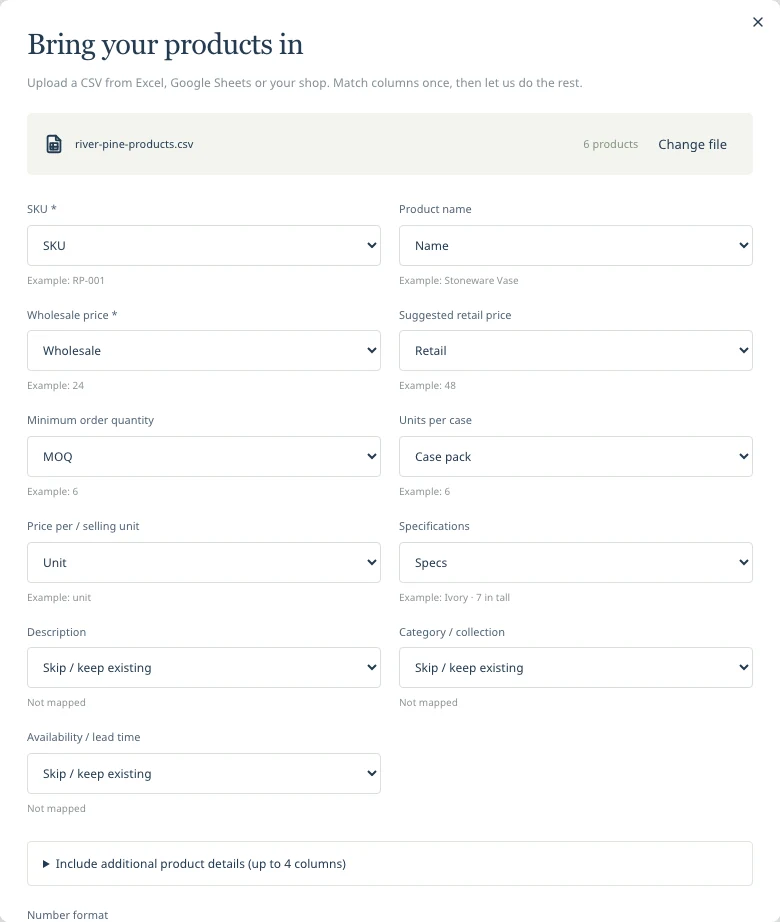
Follow the screenshots with the River + Pine walkthrough CSV. The broader sample above demonstrates other categories and fractional quantities.
3. Keep numbers and currency consistent
Choose decimal-point formatting for values such as 12.50, or decimal-comma formatting for 12,50. Prices support two decimal places. Quantities support up to three decimal places, which is useful for fabric sold by length. Do not use thousands separators in quantities.
Set the catalog currency in the editor. All prices in one project use that currency. Changing the currency label does not convert amounts or fetch exchange rates. Use a separate project when you need a separately priced currency list.
4. Match photos by SKU
Name a JPEG or PNG photo after its product SKU, for example TEE-NV-M.jpg. Upload the photos together after the CSV import and review the matching result. Check unmatched files for an extra suffix, a spelling difference or a missing product. You can replace any product photo manually.
The current catalog uses one primary image per product. Keep additional lifestyle shots outside the product table, or choose the image that best identifies the variant. Uploaded photos are not read from an image-URL column in your CSV.
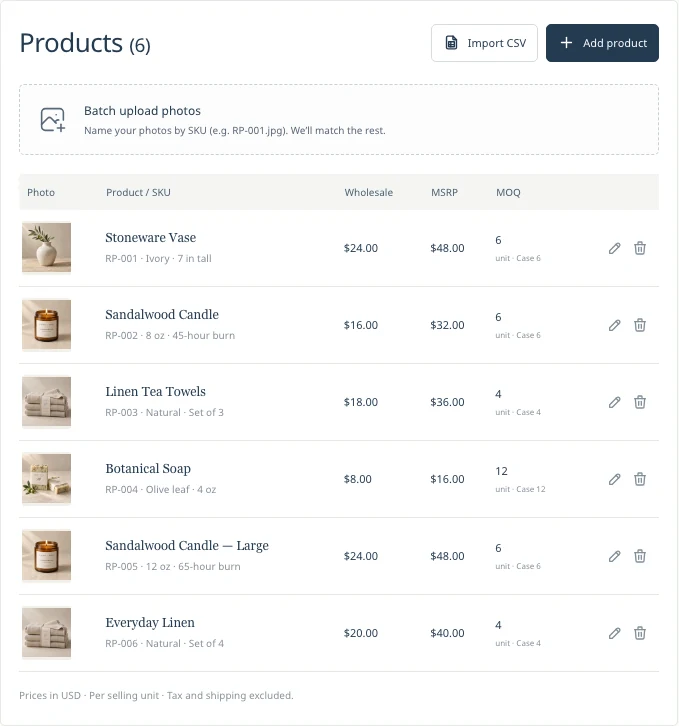
5. Preview and keep a backup
Choose a line sheet template, add your branding and terms, and inspect the A4 or Letter preview. Imports support up to 500 products per project and CSV files smaller than 5 MB. Split a larger range by collection or category.
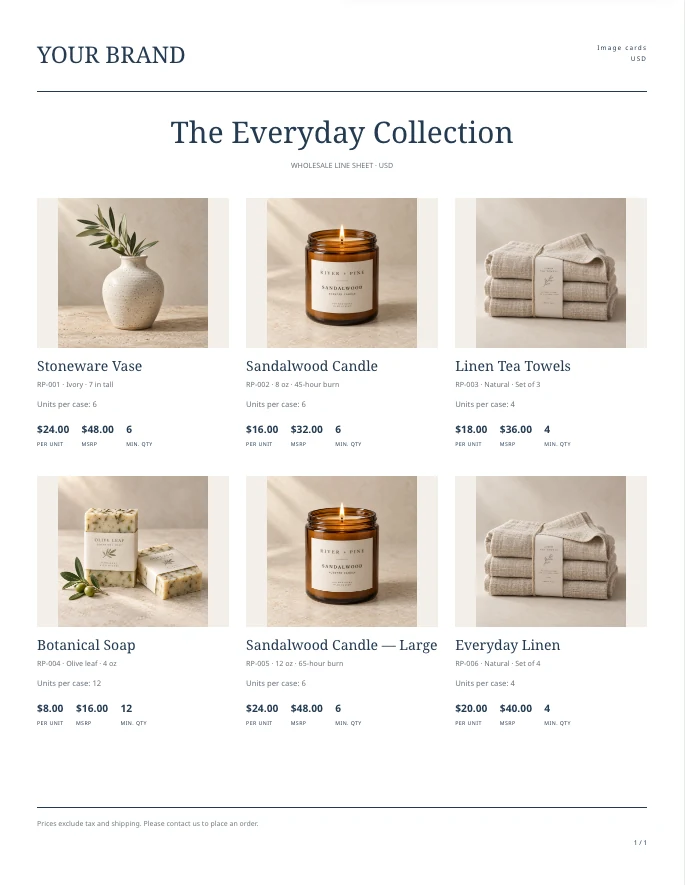
Inspect a complete, branded version of this sample as a PDF.
Local projects are saved in the current browser. Clearing site data or moving to another browser will not bring those copies with you. Keep a project backup, or log in with Pro and choose Cloud save. A backup includes project data and images; it is not a downloadable catalog PDF.
When the next price list arrives, follow the customer pricing and update guide to review SKU changes before applying them.
What Is a Wholesale Line Sheet? Examples & Checklist
A buyer-ready checklist for SKUs, prices, minimum orders and product details, with examples across different product categories.
Read the guide The pricing workflowKeep customer price lists up to date
Work through discounts, fixed quotes and case prices, then review what changes when a new product spreadsheet arrives.
Read the guide